
If you are starting your networking journey or preparing for certifications like CCNA, CCNP, or SD-WAN labs, EVE-NG is one of the best network emulation platforms you can use.
In this blog, we will walk through EVE-NG installation step by step, in very simple language, so even beginners can follow along easily.
Let’s get started
What We Are Going to Install
Before starting, make sure you download and install the following tools:
- VMware Workstation Player
- EVE-NG Community Edition
- EVE-NG Windows Client Pack
- WinSCP
Don’t worry – we will cover everything one by one.
Step 1: Download Required Software
1. Download EVE-NG Community Edition
- Open the official EVE-NG website:
https://www.eve-ng.net/
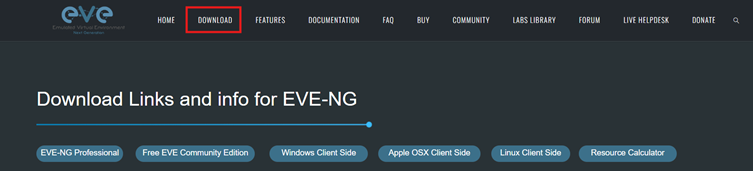
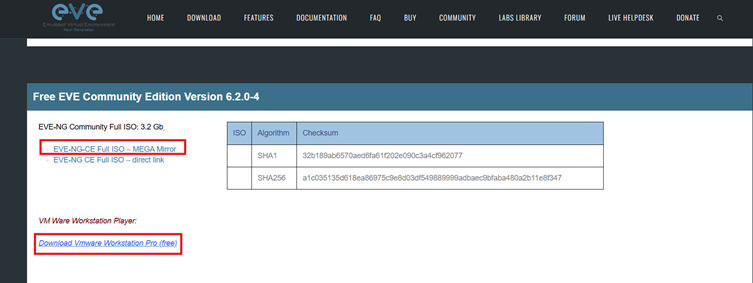
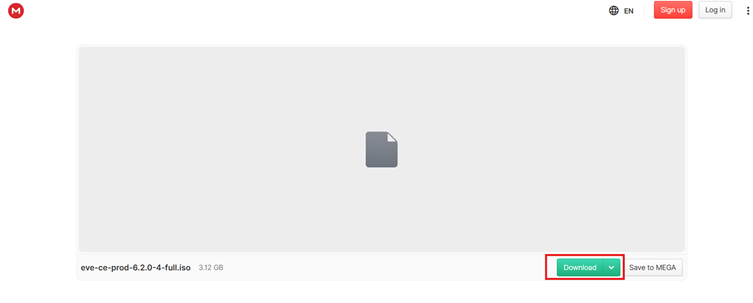
- Download the EVE-NG Community Edition (OVA file)
- You can also use the Mega Mirror link if provided on the site.
2. Download VMware Workstation Player
- Download VMware Workstation Player from:
https://www.vmware.com/go/downloadplayer
This software is used to run EVE-NG as a virtual machine on your laptop or desktop.
Note:
Before downloading, you must sign in on the Broadcom website.
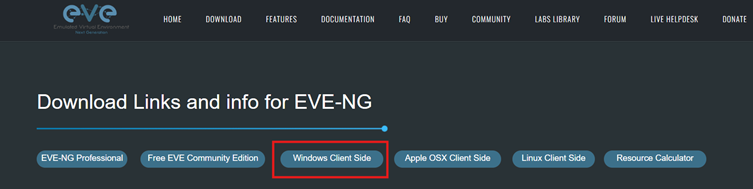
3. Download EVE-NG Windows Client Pack
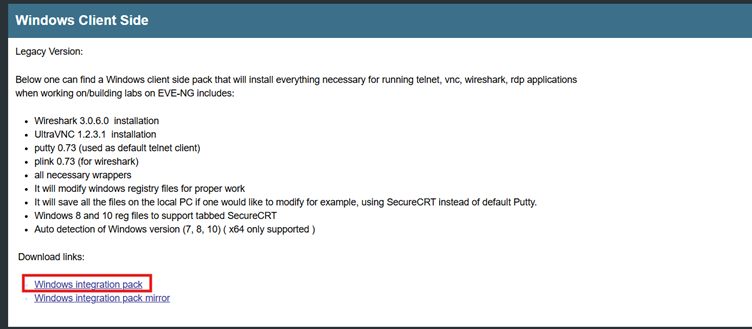
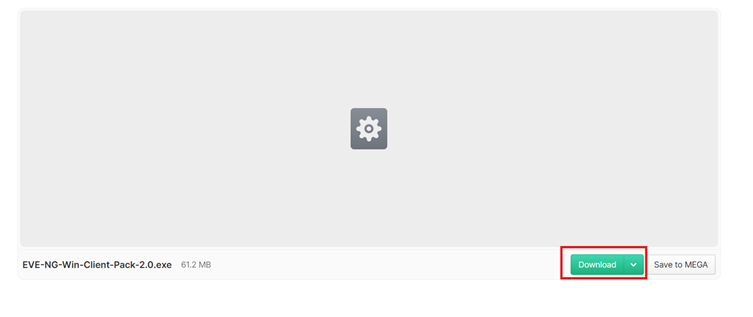
- On the EVE-NG website, look for Windows Integration Pack
- Download and save it on your system
This package installs:
- Wireshark
- UltraVNC
- Required network drivers
These tools help EVE-NG work smoothly with your Windows system.
4. Download WinSCP
- Download WinSCP from:
https://winscp.net/download/
WinSCP is used to copy router and switch images from your local system to the EVE-NG virtual machine.
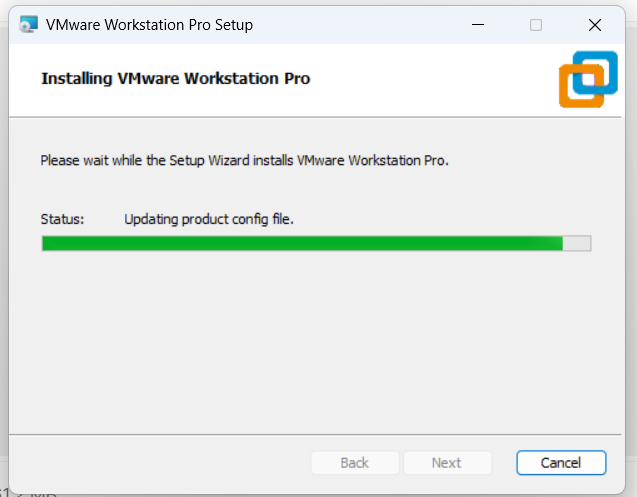
Step 2: Install VMware Workstation Player
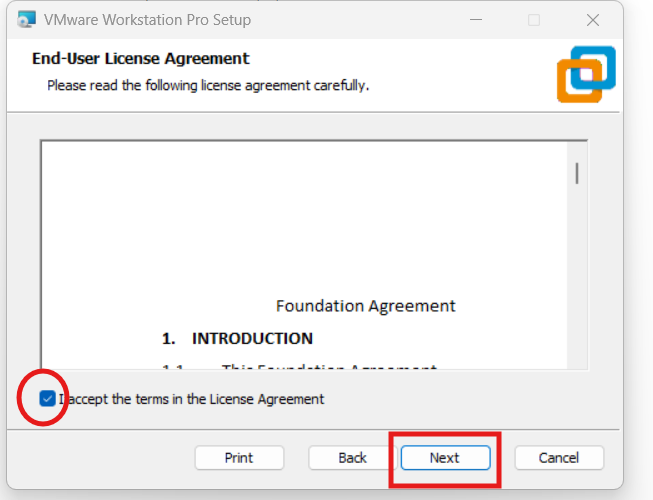
- Double-click on the VMware installer
- Click Next → Next
- Accept the license agreement
- Click Install
- Once installation is complete, click Finish
VMware Workstation is now installed successfully.
Step 3: Install EVE-NG Windows Client Pack
- Double-click the Windows Client Pack installer
- Click Next → Next → Next
- Click Finish
This will automatically install Wireshark and UltraVNC.
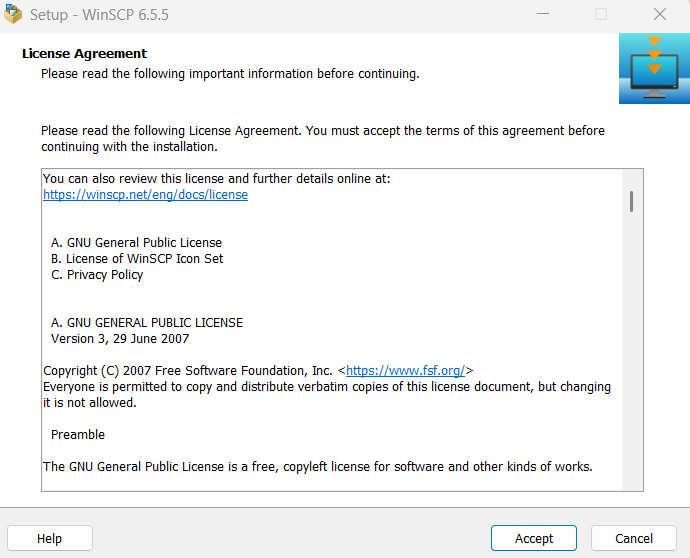
Step 4: Install WinSCP
- Open the WinSCP installer
- Choose Install for all users
- Accept the license agreement
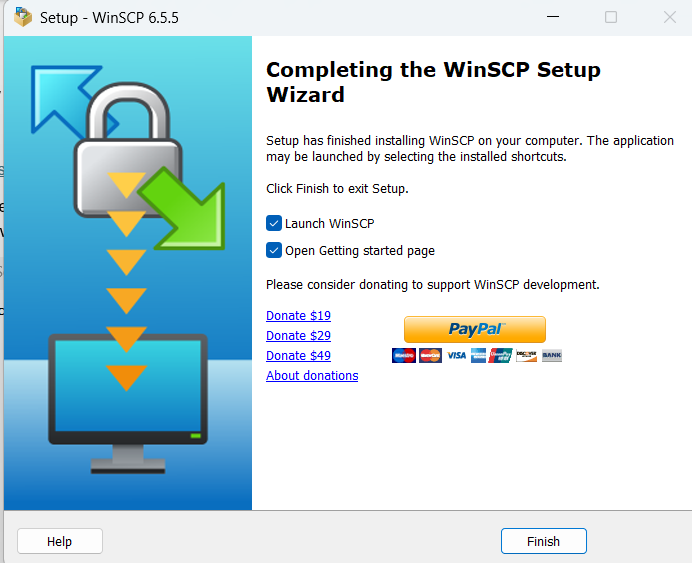
- Click Next → Next → Install
- Click Finish
WinSCP installation is complete.
Step 5: Import EVE-NG Image into VMware
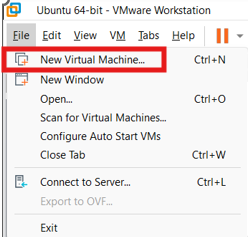
- Locate the downloaded EVE-NG OVA file
- Double-click the file
- VMware will automatically open and start importing the virtual machine
- No manual configuration is required
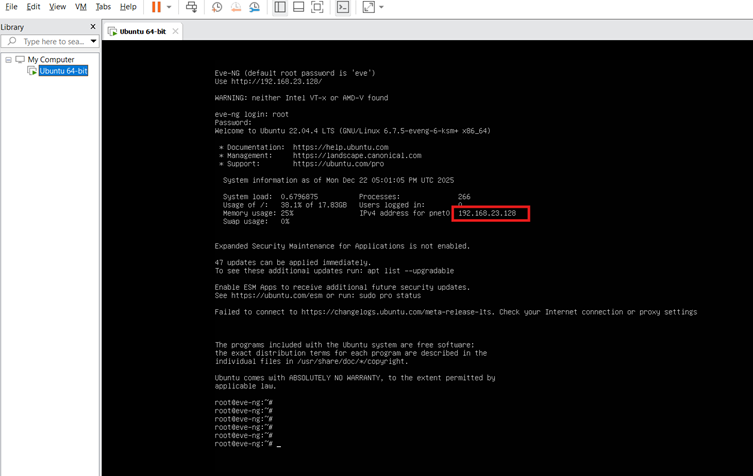
- Once imported, power on the EVE-NG VM

Step 6: Login to EVE-NG
CLI Login (Console Access)
- Username: root
- Password: eve
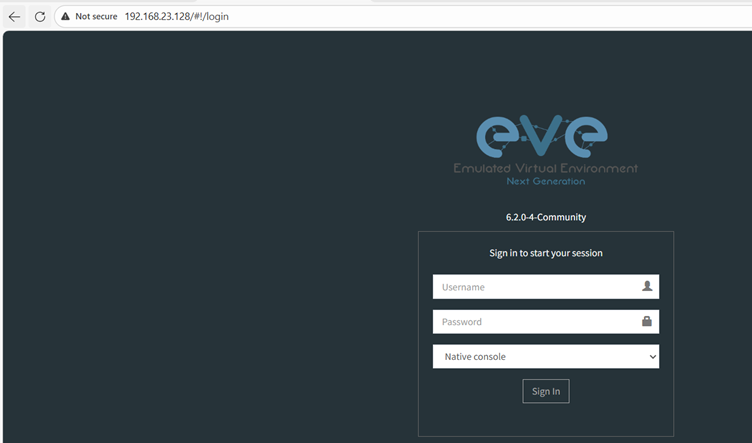
GUI Login (Web Access)
- Open browser and enter the EVE-NG IP address
- Username: admin
- Password: eve
Now you can access the EVE-NG web interface.
Step 7: Upload Router & Switch Images to EVE-NG
By default, EVE-NG does not include router or switch images.
We need to upload them manually using WinSCP.
You can download all the required SD-WAN, router, and switch images from the link below and save them in a single folder
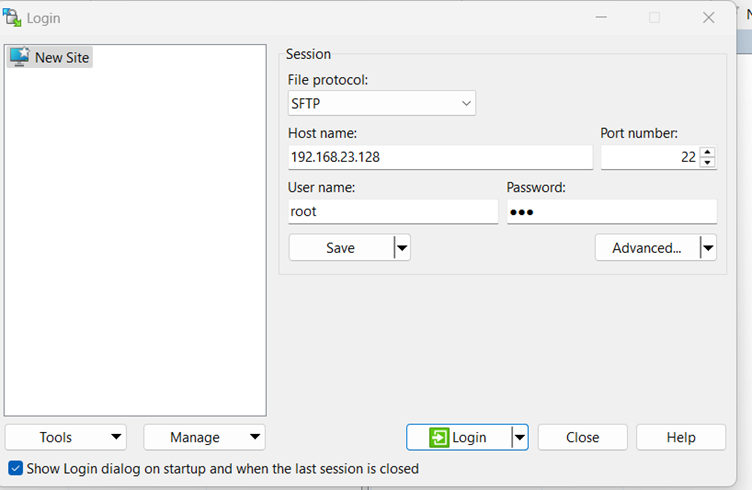
Connect to EVE-NG Using WinSCP
- Open WinSCP
- Enter the following details:
- Hostname: EVE-NG VM IP (example: 192.168.23.128)
- Port: 22
- Username: root
- Password: eve
- Click Login
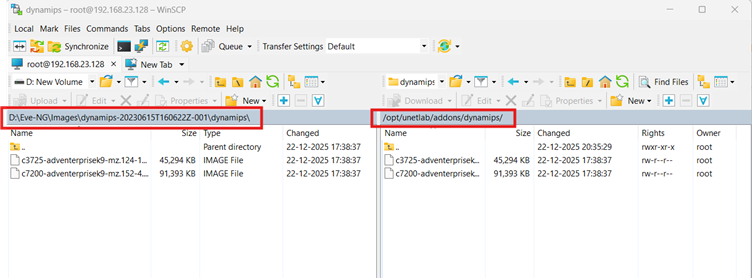
Copy Images to EVE-NG
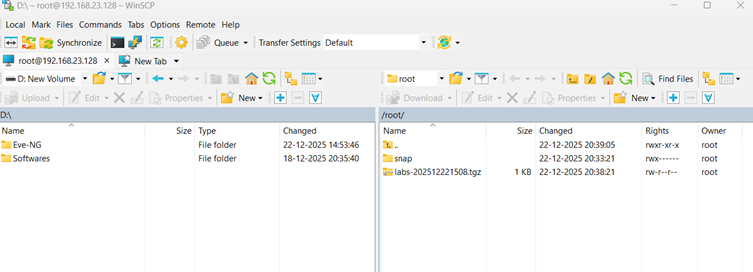
- Left panel → Your local system
- Right panel → EVE-NG virtual machine
Navigate to this directory on EVE-NG:
/opt/unetlab/addons/dynamips
Tip:
In this example, router images are stored in the D:\ drive on the local machine.
Drag and Drop Images
- Select router images from the left pane
- Drag and drop them into the right pane
- Files will start copying to the EVE-NG VM
Images are now successfully uploaded.
Final Thoughts
That’s it!
You have successfully:
- Installed VMware Workstation
- Installed EVE-NG
- Set up Windows integration tools
- Uploaded router images
You are now ready to build networking labs and practice real-world scenarios in EVE-NG.